You are currently viewing Zend Server 5.x documentation. Click here to view the latest Zend Server online documentation.
You are currently viewing Zend Server 5.x documentation. Click here to view the latest Zend Server online documentation.
You are currently viewing Zend Server 5.x documentation. Click here to view the latest Zend Server online documentation.
After installing your version of Zend Server,
complete the
|
|
|
|
|
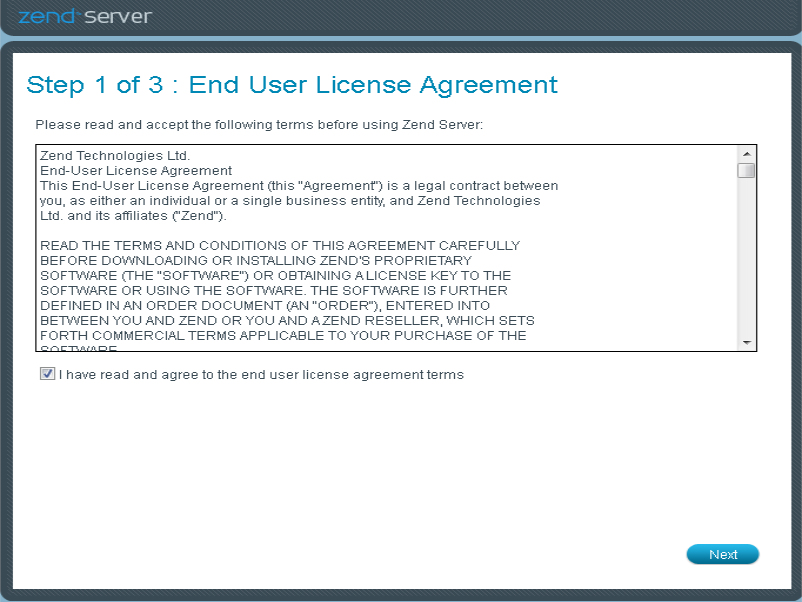
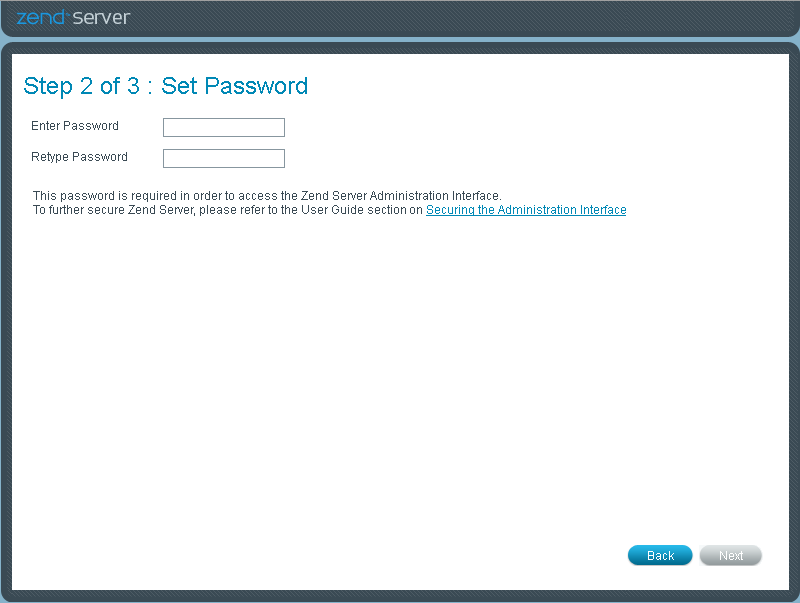
To register Zend Server:
Note: If you are using the Zend Controller locally or remotely (i.e., Zend Server and Zend Controller are located on separate machines), make sure that the Zend Controller settings match your Zend Server settings. Click here for instructions on how to change your Zend Controller settings according to your operating system.
Note: If you do not have a license key, click on the 'Welcome to Zend Server' banner to go to the Zend Server Download page. You can also receive an Evaluation license key that is valid for a limited duration of time.
|
|
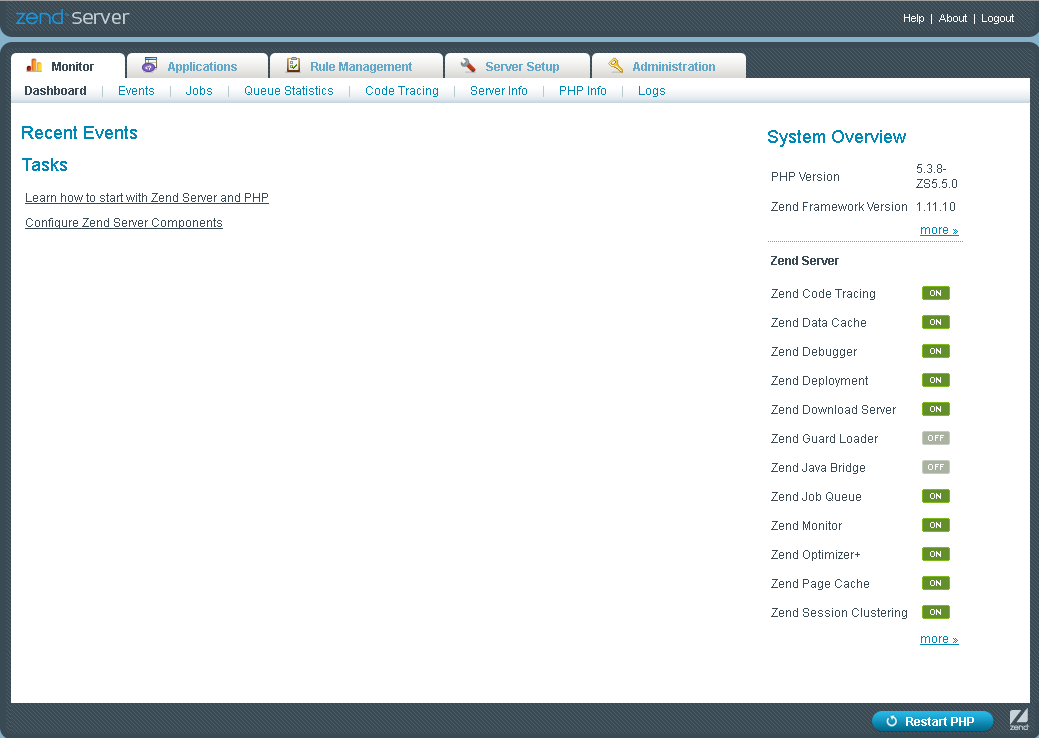
After completing the Wizard, Zend Server will run with the Administration Interface Dashboard displayed. To get started with Zend Server, see Getting Started and Working with Zend Server. |
|
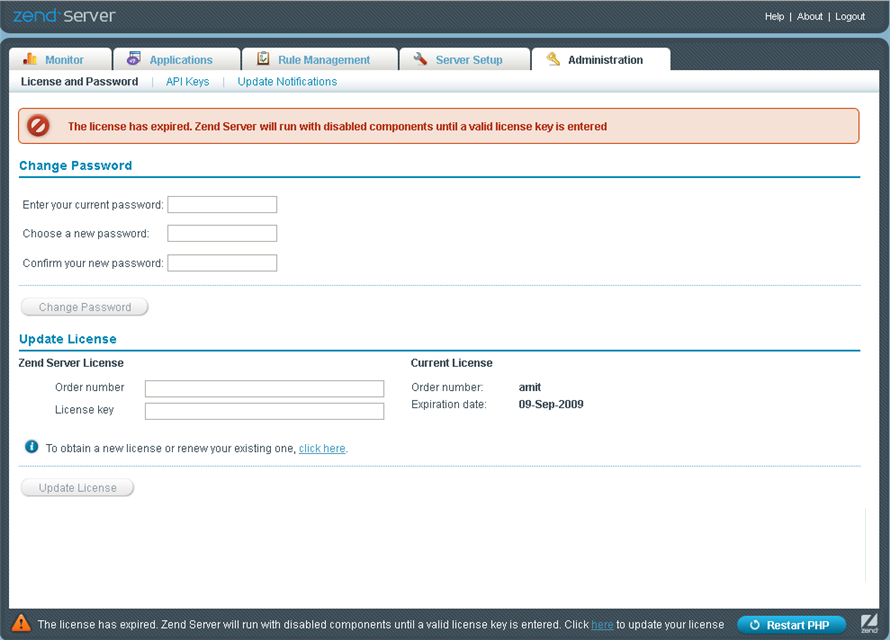
Before a license expires, a warning message is displayed at the bottom of the Administration Interface, notifying you how long you have left until your license expires and where to go to renew your license.

Once a license expires, all licensed features will display in error-state until a new license is entered. However, their settings are kept and are restored, along with the functionality, when a new license is entered.
|
|
|
|
|
To update your license:
|
|
|
|
|
|
|
|
|
Related Links: |
|
|
|

© 1999-2013 Zend Technologies, Ltd. All rights reserved.


 to apply
the changes.
to apply
the changes.